Remote servers, local reflexes.
A remote pane behaves exactly like a local one. F5 still copies. F6 still moves. F9 still diffs. Tab still switches panes. The only difference is the wifi icon next to the path.
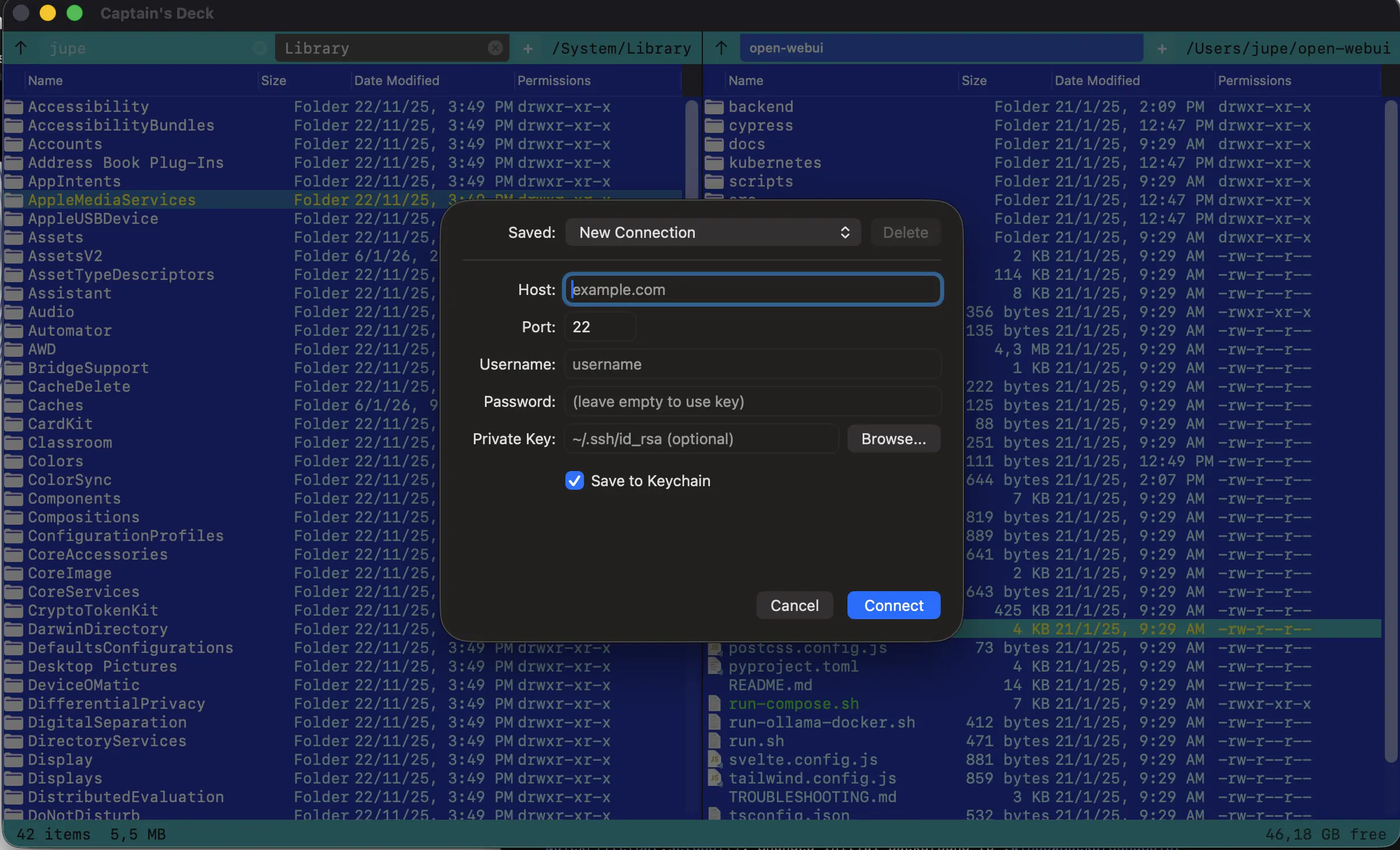
Connecting
Press Cmd+K (or Go → Connect to SFTP Server…) and pick SFTP / SSH. Fill in:
- Host —
example.comor IP - Port — defaults to 22
- Username
- Initial path — optional starting directory
Captain’s Deck reads ~/.ssh/config automatically — host aliases, ProxyJump, IdentityFile, all of it.
Authentication
Three modes, in order of preference:
- Public key —
~/.ssh/id_ed25519by default; pick a different key in the dialog. Works with macOS Keychain &ssh-agent. - Password — stored in your Keychain on opt-in.
- Keyboard-interactive — for 2FA prompts (Duo, YubiKey, Google Authenticator).
A couple of conveniences worth knowing:
- Restricted / SFTP-only accounts work. Managed hosts often hand out accounts with no shell access (
nologinorForceCommand internal-sftp). Captain’s Deck detects this and routes browsing and transfers through the SFTP subsystem — no extra configuration. If a connection only ever worked from the command line before, it works here now. - Keys from other tools just work. Private keys with Windows-style (CRLF) line endings or a missing trailing newline are accepted instead of being rejected as “invalid format”. For an encrypted (passphrase-protected) key, enter the passphrase in the Password field.
SSH_AUTH_SOCK is set in your environment.Working with remote files
Once connected, the pane header shows a coloured pill labelled SFTP followed by the host (or your saved nickname). Every keystroke works the same as on a local pane:
- F5 copies local → remote (or remote → local — direction follows the pane layout)
- F6 moves between any two panes — local↔remote, remote↔remote
- F9 diffs across the network
- F8 deletes via SFTP
The active pane’s terminal switches to an SSH session into that host.
Sync browsing
This is the WinSCP feature people miss most when they switch — and Captain’s Deck has it. Press Cmd+Option+Y (or pick View → Sync Browsing) and the panes start mirroring each other’s navigation.
What makes the implementation a bit nicer: it works on relative deltas, not absolute paths. When you toggle it on, Captain’s Deck captures both panes’ current paths as anchors. Whatever you do in one pane — cd into a subdirectory, go up, jump several levels — the same relative motion replays in the other pane.
So you can sync a local checkout at /Users/me/projects/myapp/src with the remote deploy at /var/www/myapp/src. Walk into controllers/, both sides walk into controllers/. Walk back to the project root, both sides walk back. Different absolute paths, different filesystems, doesn’t matter.
Sync browsing stops gracefully if a relative motion would walk above the other pane’s root. Toggle it off with Cmd+Option+Y again to navigate the panes independently.
Editing remote files
The fastest workflow today: copy the file to the local pane (F5), edit it locally, then copy it back. With sync browsing on the two panes stay aligned automatically, so the round-trip is just two F5s separated by however long you spend in your editor.
Auto-download + auto-upload-on-save edit-in-place is on the roadmap, not yet shipped — we don’t want to fake it in the docs.
Speed & cancellation
- Cancel — pressing Cancel in the progress dialog actually terminates the underlying scp/ssh process and (for new files) cleans up any partial bytes on the destination.
- Live progress — the dialog shows real bytes-transferred and transfer speed for key-auth uploads. Password-auth uses an indeterminate animation because scp’s percentage output doesn’t flow reliably through expect’s pty.
- Server-side archive extraction — extracting a remote zip/tar/etc. runs the unpacker on the server (parallelised across multiple archives) instead of streaming bytes back to your Mac and re-uploading them.
Security
Stored credentials live in your macOS Keychain — never in plaintext on disk. Host keys follow the standard OpenSSH known_hosts contract: any change is surfaced as a blocking warning before a single byte transfers.