Opening the Disk Usage Analyzer
Access the Disk Usage Analyzer from the menu:
Tools > Disk Usage Analyzer
A new window will open showing the analyzer interface.
Selecting a Volume
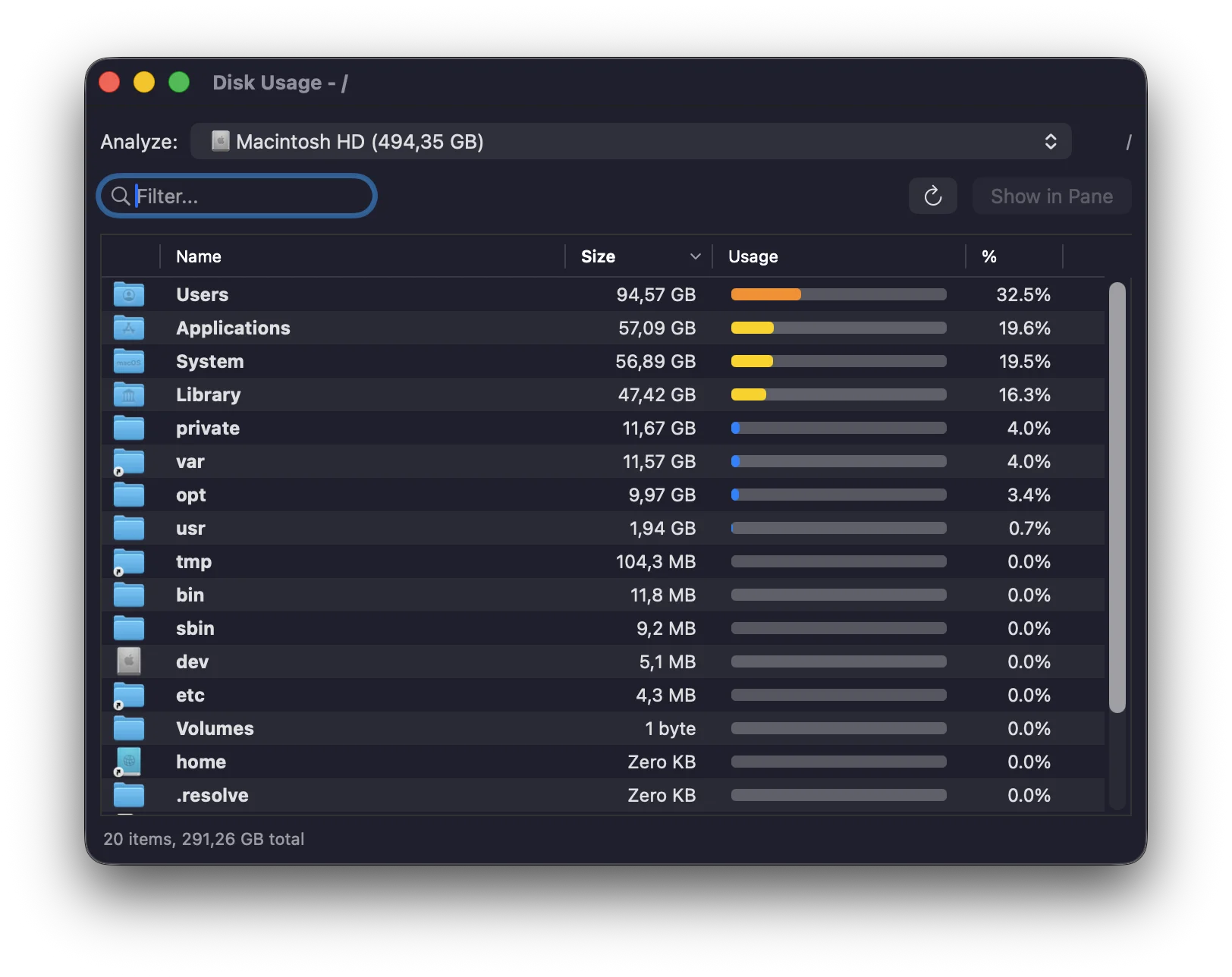
At the top of the analyzer window, you'll see a dropdown menu to select which volume or folder to analyze:
- Home Folder - Analyze your user directory (~)
- Macintosh HD - Your main system disk
- External drives - Any mounted external volumes
- Network volumes - Mounted SMB, AFP, or NFS shares
Select a volume and the analyzer will begin scanning.
Understanding the Display
The analyzer shows folders sorted by size, largest first:
- Folder name - The directory path
- Size - Total size including all contents
- Visual bar - Proportional bar showing relative size
The visual bars make it easy to spot which folders are consuming the most space at a glance.
Tip: Large folders like ~/Library, node_modules, and .git directories are often the biggest space consumers.
Drilling Down into Folders
To explore a folder's contents:
- Double-click any folder in the list
- The view updates to show that folder's subfolders
- Use the back button or breadcrumb navigation to go up
Keep drilling down to find exactly which files or folders are using the most space.
Taking Action
Once you've identified large folders, you can:
- Right-click to reveal in the main file browser
- Navigate to the folder and delete unnecessary files
- Move large files to external storage
- Use the App Deleter for unused applications
Common Space Hogs
~/Library/Caches- Application caches (usually safe to clear)~/Library/Application Support- App data (be careful)node_modules- JavaScript dependencies (delete and reinstall).git- Git history (can be large for old repos)~/Downloads- Forgotten downloads- Xcode archives and simulators
- Docker images and containers
Warning: Be careful when deleting system folders. When in doubt, move files to Trash first so you can recover them if needed.
Refreshing the Analysis
After deleting files, click the Refresh button to rescan and see your updated disk usage.
The scan runs in the background, so you can continue using Captain's Deck while it analyzes.