captains-deck.com~/guides/shortcuts-fullG.04.D · 8 min read↑ updated 2026-07-02--:--:--
ReferenceG.04.D8 min read
The complete reference.
Every action, in one place. Captain’s Deck has a lot of shortcuts because it does a lot of things — but you only ever need the eight on the cheat sheet to get started.
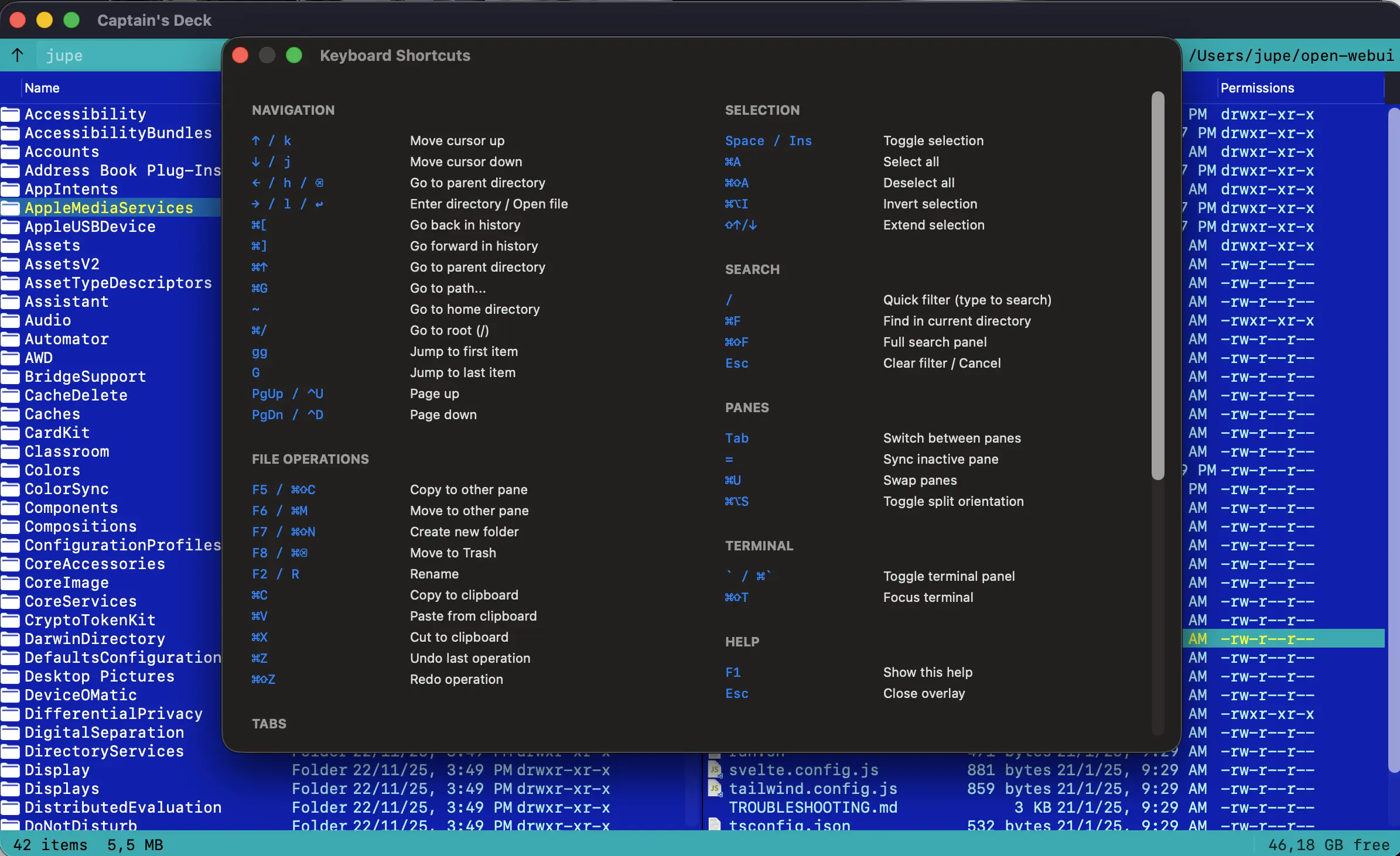
Every action also lives in the Help menu — Captain's Deck → Settings → Keyboard Shortcuts to remap.
Navigation
Action
Vim
Standard
Move down
j
↓
Move up
k
↑
Enter directory / open file
l
→ / Enter
Parent directory
h
← / Backspace
Top of list
gg
Cmd+↑
Bottom of list
G
Cmd+↓
Page up
Ctrl+U
Page Up
Page down
Ctrl+D
Page Down
Half page up / down
Ctrl+B / Ctrl+F
Switch panes
Tab
Go to path…
Cmd+G
Home folder
Cmd+Shift+H
Root folder
Cmd+Shift+/
Back / forward in history
Cmd+Option+← / →
Selection
Toggle selection on current
Space
Toggle and stay
Insert (or Shift+Space)
Select all
Cmd+A
Deselect all
Cmd+Shift+A
Invert selection
Cmd+Option+I
Select by pattern…
+ (numpad) / Cmd+Option+=
Deselect by pattern…
− (numpad) / Cmd+Option+−
Extend selection
Shift+navigation
F-key actions
F1
Help / context-sensitive hints
F2
Rename
F3
View file (read-only)
F4
Edit file (in chosen editor)
F5
Copy to other pane
F6
Move / rename to other pane
F7
Make directory
F8
Delete (Trash)
F9
Compare Files… (compare two selected files)
Cmd+Shift+G
Git Panel (diff modified files in repo)
—
Visual Diff has no shortcut — double-click a changed file in the Git Panel, or right-click → “Show Diff”
Cmd+Shift+R
Batch rename
Cmd+Delete
Delete (Trash)
Clipboard
Copy files
Cmd+C
Cut files
Cmd+X
Paste files
Cmd+V
Copy path
Cmd+Option+C
Copy filename
Cmd+Shift+C
Tabs
New tab
Cmd+T
Close tab
Cmd+W
Reopen closed tab
Cmd+Shift+T
Next tab
Shift+Cmd+] / Ctrl+Tab
Previous tab
Shift+Cmd+[ / Ctrl+Shift+Tab
Tab N
Cmd+1 … Cmd+9
Duplicate tab
Cmd+Option+T
Pane management
Swap panes
Cmd+U
Equalize panes (same path)
Cmd+=
Sync scroll
Cmd+Shift+S
Toggle horizontal split
Cmd+Option+H
Hide inactive pane
Cmd+Option+F
View & display
Toggle hidden files
Cmd+.
Refresh
Cmd+R
Sort by name
Click the column header (or Ctrl+F3)
Sort by date
Ctrl+F5
Sort by size
Ctrl+F6
Reverse sort
Cmd+Shift+O
Quick Look
Cmd+Y / Space+Shift
Get info
Cmd+I
Calculate folder sizes
Cmd+Shift+K
Search & filter
Quick filter view
/
Find files…
Cmd+F
Find in file contents
Cmd+Shift+F
Repeat last find
Cmd+Option+F
Run saved search
Cmd+Shift+P
Remote operations
Connect to server…
Cmd+K
Disconnect
Cmd+Shift+D
Reconnect
Cmd+Option+K
Show operations queue
Cmd+Option+O
Pause active transfer
Cmd+.
Cancel transfer
Cmd+Esc
Terminal integration
Toggle terminal
` (backtick)
Focus terminal
Ctrl+`
Insert active file path
Ctrl+Enter
Insert all selected paths
Ctrl+Shift+Enter
Insert active pane path
Cmd+Shift+L
Insert other pane path
Cmd+Shift+R
Application
Preferences
Cmd+,
Hide
Cmd+H
New window
Cmd+N
Quit
Cmd+Q / F10
Force-quit a transfer
Cmd+Option+Esc
Every binding here is rebindable from Settings → Keyboard Shortcuts. Start from a Layout preset (Orthodox, macOS, or Vim), then per action use Record to replace a shortcut, Add to give it a second one, or Remove… to drop one — so a single action can answer to several keys. A shortcut can even be a multi-key chord — press keys in sequence, like dd. Removing the last shortcut for an action clears it entirely; Reset restores the default.