The two-pane mental model.
Source. Destination. Switch with Tab. That’s the entire idea — and once it clicks, every file operation gets faster.
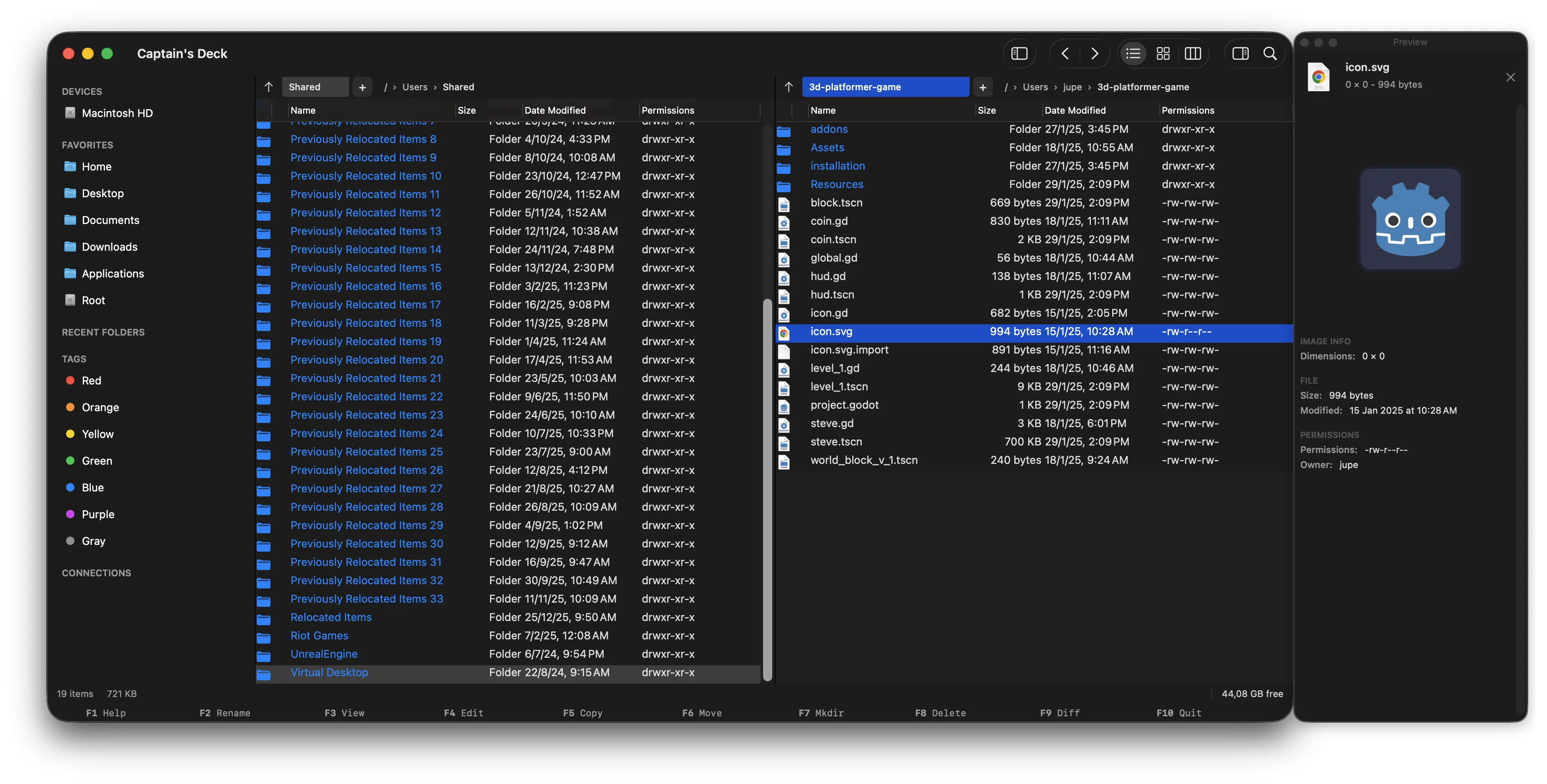
The orthodox file manager philosophy
Captain’s Deck follows the design Norton Commander pioneered in 1986 — two panels, side-by-side, every file operation visible at a glance.
- Left pane. Source or working directory.
- Right pane. Destination or comparison directory.
- Active pane. The one with focus, marked with a glowing border and a dot indicator.
Interface layout
Top — tab bar
Each pane keeps its own stack of tabs. Open as many locations as you like:
- Cmd+T — new tab in the active pane
- Cmd+W — close current tab
- Cmd+] / Cmd+[ — next / previous tab
Header — breadcrumb path
Above each panel, the current location is spelled out as clickable path segments. Click any segment to jump straight to that folder. Right-click a segment to Copy Path — the full path to that folder lands on the clipboard, ready to paste into a shell or a Go To dialog.
Middle — file panels
Each panel shows directory contents in columns:
- Name (with icon)
- Size
- Date modified
- Permissions (optional, on by default for power users)
Right-click any column header to show, hide, or reorder columns.
Bottom — function key bar
The classic F1–F10 row — always visible, always one key away.
| F1 Help | F6 Move |
| F2 Rename | F7 MkDir |
| F3 View | F8 Delete |
| F4 Edit | F9 Diff |
| F5 Copy | F10 Quit |
Switching between panes
The active pane is marked by a highlighted border. Switch focus with:
- Tab — toggle left ↔ right
- Click anywhere in a pane to activate it
Selecting files
Selection is the bridge between navigation and action.
- Space — toggle selection on current file (then move down)
- Cmd+A — select all
- Cmd+Option+I — invert selection
- Shift+navigation — extend selection while moving
The status bar shows the count and total size of selected items.
Quick filter
Press / to filter the current view. Type to narrow; only matching files stay visible.
- Case-insensitive
- Matches anywhere in the filename
- Esc clears the filter
Hidden files, sorting, and the terminal
Hidden files
Toggle dotfiles with Cmd+. (period).
Sorting
Click any column header to sort. Click again to reverse.
Thumbnails in Icon view
Switch a pane to Icon view and image files render as real thumbnails, so you can pick the right photo without opening it.
Live folder updates
The list keeps itself current. When another app adds, removes, or renames a file in the folder you’re looking at, the pane refreshes on its own — no Cmd+R needed.
The terminal panel
Press ` (backtick) to toggle the integrated terminal at the bottom of the window. It auto-syncs with the active pane’s directory — see the terminal guide.